
WooCommerce order management covers everything that happens after a customer places an order, from payment and stock updates to fulfillment, tracking, refunds, and completion. For a WooCommerce-only store, the built-in order tools can handle much of this workflow. But once you add a physical store, Square POS, multiple sales channels, or high order volume, managing everything manually gets harder.
This guide explains how WooCommerce orders work, how to process and fulfill them, how order statuses affect inventory, how to handle refunds and cancellations, and when you need additional automation or synchronization.
What Is WooCommerce Order Management?
WooCommerce order management is the process of creating, processing, tracking, fulfilling, updating, and completing customer orders from your WooCommerce store.
Order management also overlaps with WooCommerce customer management, since customer details, order history, billing information, shipping information, and purchase activity are often managed alongside each order.
It covers more than simply viewing orders in the WordPress dashboard. A complete WooCommerce order management workflow can include:
- Order creation
- Payment confirmation
- Order status management
- Customer information
- Products and quantities
- Inventory updates
- Order processing
- And more.
The basic lifecycle looks like this:
Order placed → Payment processing → Order status update → Stock adjustment, where applicable → Fulfillment → Shipping or pickup, where applicable → Completed
The exact workflow depends on the payment method, product type, and order status. Failed payments, cancellations, and refunds can take different paths.
An order can also leave that normal path. Payment may fail, a customer may cancel, stock may become unavailable, or you may need to issue a full or partial refund.
How the WooCommerce Order Lifecycle Works
A WooCommerce order doesn’t simply move from “new” to “done.” Several systems can interact with it during its lifecycle.
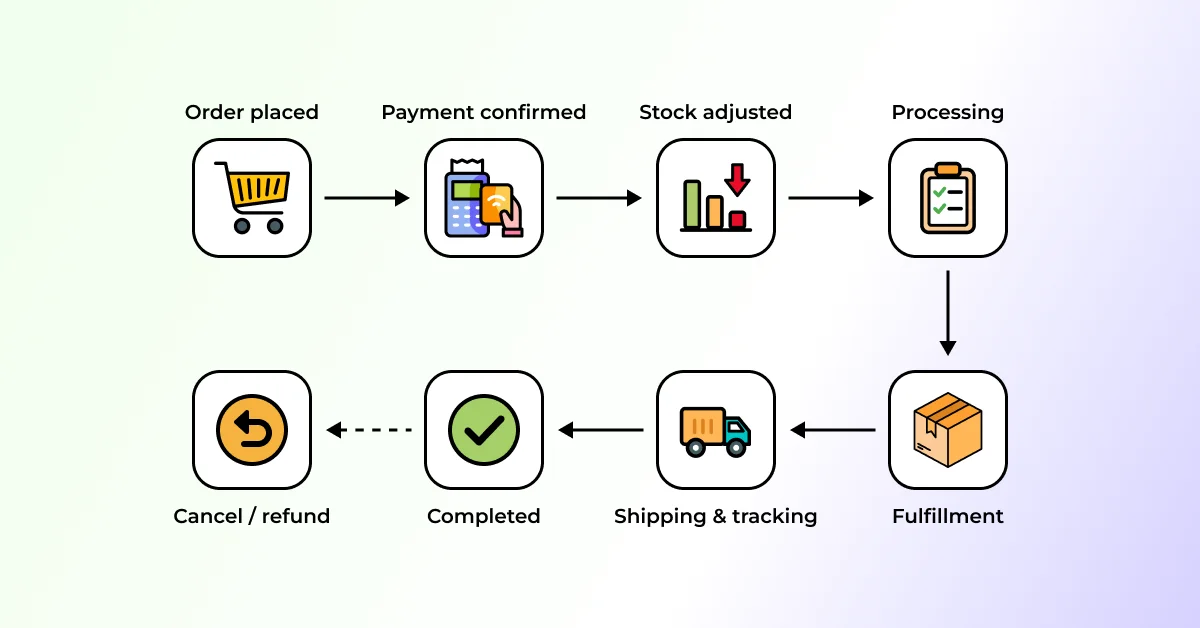
Let’s look at each stage.
1. Order Creation
The lifecycle begins when a customer submits an order through your WooCommerce checkout.
WooCommerce records the products purchased, quantities, customer details, billing and shipping information, payment method, shipping method, taxes, fees, discounts, and other order data.
The order then receives a status based on what happens with payment and fulfillment.
2. Payment Confirmation
The payment gateway determines how WooCommerce handles the payment stage.
A successfully paid physical-product order will typically move into Processing, while an unpaid order can remain Pending payment. Orders using payment methods that require confirmation can remain On hold until the payment is verified.
This is why your team should check the payment status before fulfilling an order.
3. Inventory Deduction
Inventory and order management work closely together.
When WooCommerce manages stock, an order can reduce the available quantity of the purchased product. Cancellations, failed payments, and other order changes can also affect inventory.
For example:
Available stock: 20
Customer orders: 3
Remaining stock: 17
If another customer purchases two units, the quantity becomes 15.
The same principle applies to product variations. A customer purchasing a Medium T-shirt should affect the Medium variation’s stock rather than the stock assigned to Large or Small.
4. Order Processing
Once payment is confirmed, your team can begin preparing the order.
For a physical product, this usually means:
- Reviewing the order
- Checking inventory
- Picking products
- Checking quantities
- Packing the order
- Preparing shipping
- Adding tracking information
WooCommerce uses the Processing status to indicate that payment has been received and the order is awaiting fulfillment.
5. Fulfillment
Fulfillment is the physical or operational completion of the order.
Depending on your business, fulfillment could mean:
- Packing and shipping an item
- Preparing an order for local pickup
- Delivering an order yourself
- Sending a digital product
- Passing the order to a third-party fulfillment provider
WooCommerce stores the order information, while specialized shipping and fulfillment tools can handle labels, carriers, warehouses, and delivery workflows.
6. Shipping and Tracking
After an order ships, your store can provide the customer with tracking information.
The exact tracking workflow depends on your shipping carrier and integration.
Your goal should be simple: the customer should know that the order has shipped and have a way to follow its delivery progress.
7. Order Completion
Once you’ve fulfilled the order, you can mark it as Completed.
WooCommerce defines a completed order as one that has been fulfilled and requires no further action. Physical orders commonly move from Processing to Completed after fulfillment.
8. Cancellation, Refund, or Return
Not every order reaches completion.
A customer may cancel an order before fulfillment. A payment may fail. A customer may request a refund after receiving the product.
WooCommerce handles these scenarios through different statuses and refund workflows.
WooCommerce can restore stock when an order is cancelled, provided the relevant stock settings and order state allow it. A refund is a separate financial action. Refunding an order does not automatically mean the customer returned the product or that you should restock it. Check the refund, return, and stock records separately.
WooCommerce Order Statuses Explained
WooCommerce order statuses tell you where an order currently stands.
The standard statuses you are most likely to work with include:
- Pending payment
- Processing
- On hold
- Completed
- Failed
- Cancelled
- Refunded
Current WooCommerce versions can also use Draft for temporary checkout records created by the block-based checkout before an order is submitted.
| WooCommerce Order Status | What It Means | Typical Next Step |
| Pending payment | The order was received, but WooCommerce has not confirmed payment. | Wait for the customer to complete payment before fulfillment. |
| Processing | Payment has been received, stock has been reduced, and the order is ready for fulfillment. | Pick, pack, and prepare the order for shipment. |
| On hold | The order is waiting for payment confirmation, often with offline or delayed payment methods. | Verify the payment, then move the order forward. |
| Completed | The order has been fulfilled and requires no further action. | No further action is normally required. |
| Failed | The payment failed or was declined. Stock may be returned when the order moves to this status. | Investigate the payment issue or ask the customer to try again. |
| Cancelled | The customer or administrator canceled the order. Stock is returned when inventory management is enabled. | Confirm the cancellation and handle any required customer communication. |
| Refunded | The order has been fully refunded. Changing the status alone does not send money back to the customer. | Process the refund through the appropriate refund workflow or payment gateway. |
| Draft | A temporary checkout record created by the block-based checkout before the customer submits the order. | Wait for checkout completion or review abandoned/temporary records as needed. |
How WooCommerce Order Statuses Change
Order statuses can change because of:
- Payment gateway responses
- Administrator actions
- Customer actions
- Order cancellations
- Refunds
- Fulfillment workflows
- Connected plugins
- External integrations
If an order appears stuck, don’t change its status manually right away. First, check the payment method, order notes, transaction information, and any relevant integration logs.
How to Manage WooCommerce Orders
WooCommerce gives you the core tools to review, update, and process orders from one dashboard. For most stores, the workflow is straightforward: review the order, confirm payment and inventory, fulfill it, add tracking, and update the status. When you also sell through Square POS, however, managing orders becomes more complex because sales and inventory can exist across two systems.
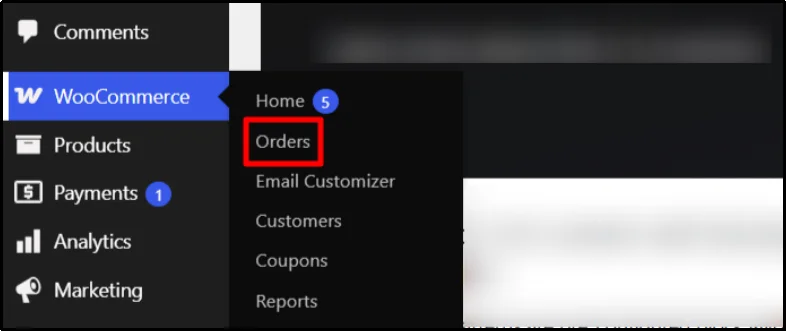
- Go to WooCommerce → Orders to view and manage your orders.
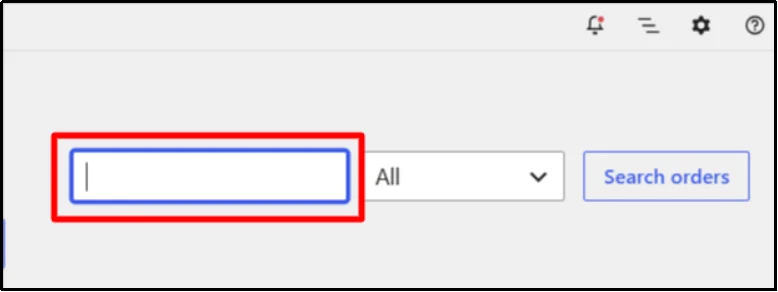
- Use search and filters to find orders by number, customer, status, date, or other available order information.
- Open an individual order to review customer details, products, quantities, payment information, shipping details, order notes, and status.
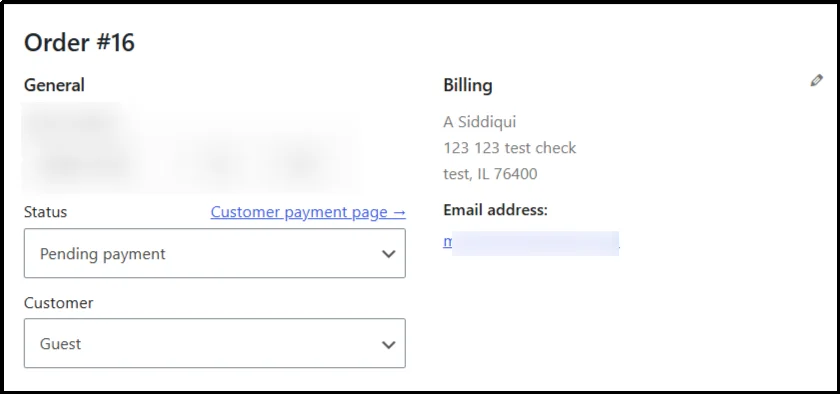
- Confirm the payment status before fulfillment, especially for orders using offline or delayed payment methods.
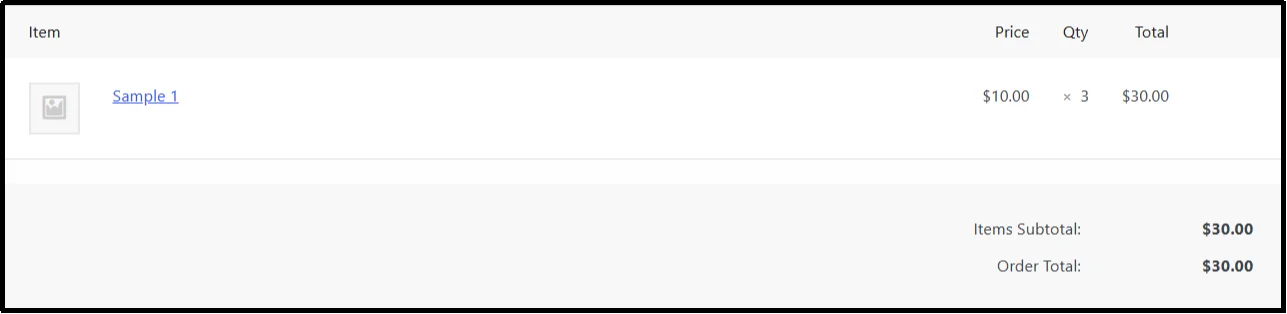
- Check product and variation stock before picking and packing the order.
- Add order notes for important internal instructions, payment updates, customer requests, or fulfillment information.
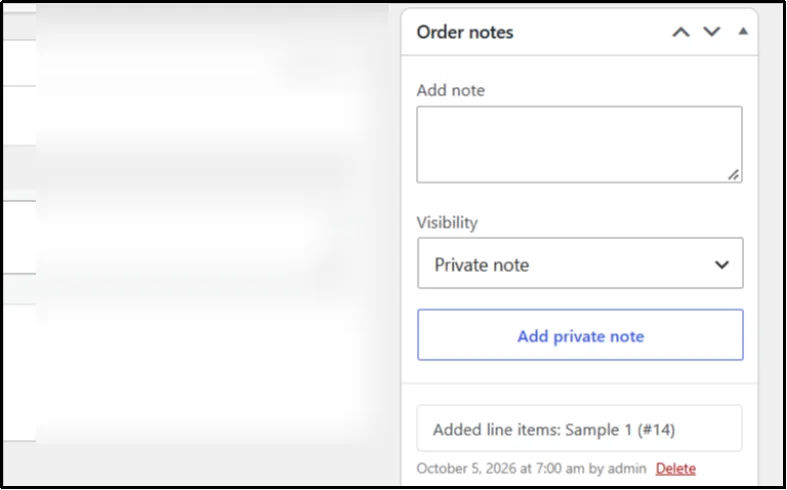
- Add shipping and tracking information through your shipping workflow or integration.
- Update the order status when the appropriate stage is complete rather than changing statuses simply to move orders through the dashboard.
- Use bulk actions when several orders require the same update.
- Review refunds, cancellations, and inventory changes together when resolving order issues.
For a WooCommerce-only store, this native workflow may be enough. But when the same products sell through WooCommerce and Square POS, the bigger challenge becomes keeping orders, customers, and inventory synchronized.
Managing WooCommerce and Square POS Orders Together
Selling through both WooCommerce and Square POS creates two sources of sales activity. Without synchronization, your team may need to manually reconcile products, inventory, customers, and orders. WC Shop Sync supports this multi-channel workflow with Square POS order, product, inventory, customer, and order refund synchronization.
A connected workflow can look like:
WooCommerce order → synchronization → Square
Square POS order → synchronization → WooCommerce
Inventory change → synchronization → connected store
The exact synchronization direction depends on your configuration and which data you want each platform to manage. The important point is to define your source of truth and avoid maintaining the same information manually in two systems.
When Do You Need a WooCommerce Order Management Extension?
WooCommerce includes built-in tools for viewing orders, updating statuses, managing stock, and processing refunds. These tools may be enough if you sell only through your online store.
You may need an additional extension when your business handles high order volumes, requires specialized fulfillment workflows, exports detailed order data, or sells through multiple channels.
If you sell both online through WooCommerce and in person through Square POS, a compatible integration can help synchronize supported orders, product data, and inventory across both platforms. WC Shop Sync supports these workflows, depending on your configuration and plan.
Why WC Shop Sync Fits Into WooCommerce Order Management
If you only sell through WooCommerce, native order management may be all you need. If you also operate a physical store with Square POS, WC Shop Sync can reduce the repetitive work involved in keeping both platforms aligned.
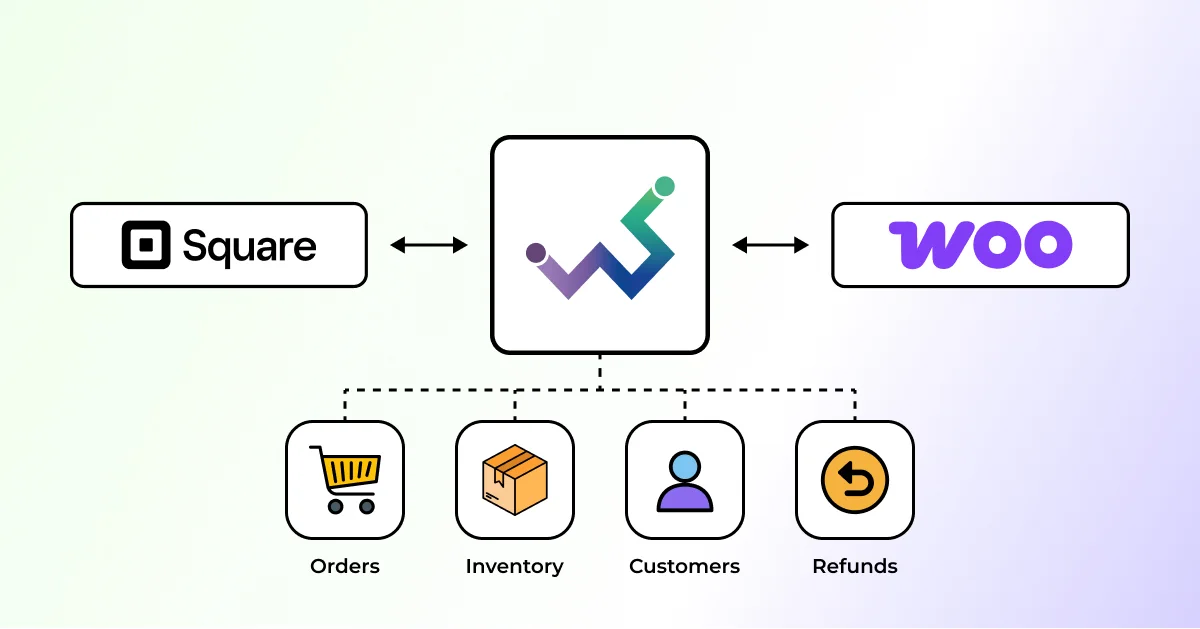
Its WooCommerce order management workflow can help you:
- Bring Square POS orders into WooCommerce
- Synchronize WooCommerce orders with Square
- Keep product information aligned
- Synchronize inventory across sales channels
- Synchronize customer information
- Sync supported refunds
- Review synchronization history and activity
- Reduce manual order and inventory reconciliation
10 WooCommerce Order Management Best Practices for 2026
Good order management depends on accurate data, clear responsibilities, and a repeatable workflow. The following practices can help you reduce manual work, prevent inventory discrepancies, improve fulfillment, and keep online and in-store orders aligned.
- Define a clear order status workflow – Use statuses that clearly tell your team what has happened and what needs to happen next. Avoid unnecessary custom statuses.
- Keep order and inventory data synchronized – Make sure your order and inventory systems consistently reflect what has been sold, returned, or remains available.
- Use SKUs consistently – Give every product and variation a unique SKU so you can match products across WooCommerce, Square, fulfillment tools, and inventory systems.
- Process orders in batches where possible – Group repetitive tasks such as picking, packing, adding tracking, and updating statuses to reduce context switching.
- Use order notes for internal handoffs – Record important decisions, customer requests, and fulfillment details directly in the order instead of relying on memory.
- Automate repetitive status updates – Automate predictable workflow steps where appropriate, but test them carefully to avoid incorrect statuses or unwanted customer notifications.
- Add tracking information promptly – Add shipment tracking as soon as it becomes available so customers can follow their orders.
- Reconcile refunds with inventory – After refunds and returns, verify that WooCommerce stock matches the physical inventory.
- Review order data regularly – Use WooCommerce Analytics to monitor orders, revenue, products, stock, refunds, and other operational metrics.
- Connect POS and online sales when needed – If you sell through WooCommerce and a physical POS, use synchronization where appropriate instead of maintaining separate spreadsheets and manual updates.
Common WooCommerce Order Management Problems
WooCommerce order management problems often appear when payment, fulfillment, inventory, shipping, or synchronization processes fall out of alignment. Before manually changing an order or stock quantity, identify where the workflow broke so you can fix the underlying issue.
- Orders stuck in Processing: Check whether fulfillment, shipping, or a connected integration still requires action.
- Orders stuck on Pending Payment: Check the payment gateway, transaction details, and order notes before changing the status manually.
- Inventory doesn’t match orders: Review recent orders, cancellations, refunds, manual stock changes, product variations, POS transactions, and synchronization logs.
- Customers can’t track orders: Confirm that the shipment exists, tracking information was added, the tracking integration works, and the customer notification was sent.
- Too many orders to process manually: Document the workflow first, then identify repetitive steps that you can safely automate.
- Online and POS orders don’t match: Check product matching, SKUs, inventory, source-of-truth settings, synchronization status, failed sync events, and manual changes.
- Refunds don’t match inventory: Compare the original order, refunded quantity, return status, and inventory adjustment.
- Order data is difficult to export: Use WooCommerce Analytics for available CSV exports, or consider a dedicated export solution when you need advanced fields, scheduled exports, or automated transfers.
Make WooCommerce Order Management Easier With WC Shop Sync
WooCommerce gives you the core tools needed to manage orders from checkout through fulfillment. You can track order statuses, manage products and quantities, process refunds, add notes, monitor inventory, and analyze order activity from your WordPress dashboard.
The challenge starts when your operation expands beyond a single online store.
If you sell through WooCommerce and Square POS, WooCommerce order management becomes a synchronization problem. Online orders, in-store sales, inventory changes, customer records, and fulfillment information can exist in separate systems unless you connect them.
If your business relies on both online and in-store sales, WC Shop Sync is your go-to option for connecting WooCommerce and Square while supporting product, inventory, order, and customer synchronization workflows.
Frequently Asked Questions
Can WooCommerce handle a large number of orders?
Yes. WooCommerce can handle substantial order volumes, but performance depends on hosting, database configuration, extensions, traffic, and order-processing workflows.
Can I bulk edit WooCommerce orders?
Yes. WooCommerce supports bulk actions for certain order management tasks. More advanced bulk editing may require an extension.
How can I export WooCommerce orders?
WooCommerce Analytics lets you export CSV files from supported reports. However, exporting report data is different from exporting complete individual order records. For order-level CSV exports, custom fields, scheduled exports, or automated transfers, use a compatible order export extension.
How do I track WooCommerce orders?
Add tracking information through your shipping workflow or a compatible tracking integration, then make the tracking details available to customers.
Can I manage Square POS and WooCommerce orders together?
Yes. The available workflow depends on your Square-WooCommerce integration. WC Shop Sync supports Square POS order synchronization, along with inventory and customer synchronization.
Can I sync Square POS orders with WooCommerce?
Yes. WC Shop Sync Pro supports Square POS Order Sync, allowing in-store orders to flow into your WooCommerce order workflow.