
Inventory management gets harder when your store has hundreds of products, multiple variations, physical sales, several locations, etc.
At that point, you can’t manually count stock listed in WooCommerce. You need a systematic process that keeps inventory accurate everywhere customers can buy.
That’s where you look for a suitable WooCommerce Inventory Management plugin.
By the end of this guide, you’ll have a clear understanding of WooCommerce inventory management, from configuring stock settings and managing products to preventing overselling and deciding when synchronization is needed.
What Is WooCommerce Inventory Management?
WooCommerce inventory management is the process of tracking and controlling the stock available for products sold through a WooCommerce store.
It covers more than entering a number into the stock quantity field.
A complete inventory process can include:
- Tracking product stock quantities
- Assigning SKUs
- Updating stock after purchases
- Managing stock at the variation level
- Setting stock statuses
- Creating low-stock thresholds
- Sending inventory alerts
- Handling backorders
- Holding stock for unpaid orders
- Preventing unnecessary overselling
- Monitoring out-of-stock products
- Reconciling inventory
- Synchronizing stock with external systems
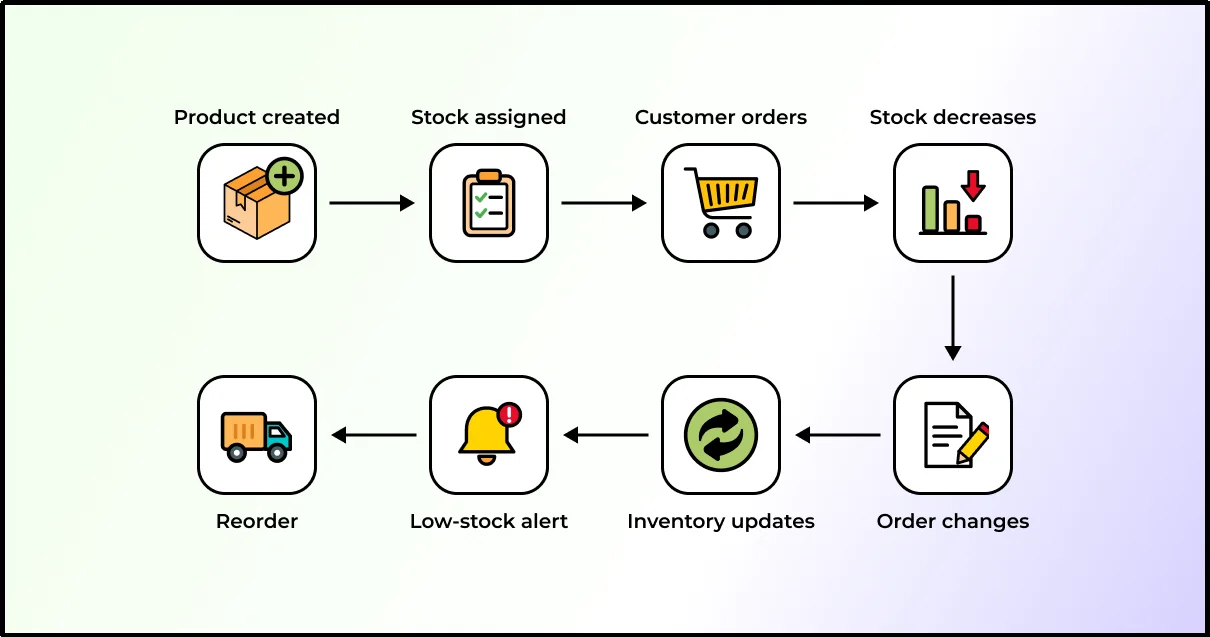
When stock management is enabled, WooCommerce adjusts managed stock as orders move through relevant order and payment statuses. It can restore stock when eligible orders are canceled or otherwise trigger stock restoration, and it can mark products out of stock when their managed quantity reaches the configured threshold.
The basic cycle looks like this:
The complexity starts when inventory changes outside WooCommerce.
What is the Need for WooCommerce Inventory Management?
As your WooCommerce store grows, tracking product quantities manually becomes harder and more error-prone. Inventory management helps you maintain accurate stock levels, avoid overselling, and know when to replenish products.
It also becomes increasingly important when you sell through multiple channels, manage product variations, or connect WooCommerce with another platform or inventory system.
Key reasons to use effective WooCommerce inventory management include:
- Prevent overselling: Keep available stock accurate so customers don’t purchase products that you cannot fulfill.
- Avoid stockouts: Monitor inventory levels and identify products that need replenishment before they run out.
- Save time: Automate stock updates instead of manually changing product quantities after every order.
- Manage product variations: Track inventory separately for sizes, colors, or other variations.
- Improve order fulfillment: Give your team accurate inventory information when processing and shipping orders.
- Reduce inventory errors: Minimize mistakes caused by spreadsheets, manual updates, or outdated stock counts.
- Support multiple sales channels: Keep inventory consistent when you sell products through WooCommerce and other connected platforms.
- Improve the customer experience: Accurate stock information helps customers know whether products are available before they place an order.
What Does WooCommerce Track as Inventory?
WooCommerce inventory management tracks several pieces of product data that determine how much you have available and whether customers can purchase it.
Stock Quantity and Status
Stock quantity represents the number of units available for sale. When you enable stock management, WooCommerce automatically adjusts the quantity as customers place orders.
WooCommerce also uses stock status to indicate whether a product is:
- In stock
- Out of stock
- On backorder
SKU
A SKU (Stock Keeping Unit) gives each product or variation a unique identifier. SKUs become especially important when you connect WooCommerce with another inventory system because both systems need to identify the same product consistently.
For example, TS-BLK-M could identify a black, medium-sized T-shirt.
Product Variations
WooCommerce can manage inventory separately for each variation of a variable product.
For example:
| Variation | Stock |
| Small | 12 |
| Medium | 8 |
| Large | 3 |
| XL | 0 |
If a customer purchases the Large T-shirt, WooCommerce can reduce the Large variation’s stock without changing the quantities for the other sizes.
Backorders and Low-Stock Thresholds
WooCommerce can allow or block backorders when a product reaches zero stock. You can also set a low-stock threshold, so WooCommerce alerts you when inventory falls below a specified quantity.
Together, these settings help you monitor available stock and identify products that need replenishment.
How Does WooCommerce Inventory Management Work?
WooCommerce uses product inventory settings to decide whether to track stock quantities and how to respond when inventory changes.
When you enable stock management, you provide WooCommerce with an inventory quantity. The platform then uses that quantity to determine product availability.
For example:
T-Shirt → 25 units
A customer buys two.
WooCommerce reduces the available quantity to: 23 units
Another customer buys five.
The remaining quantity becomes: 18 units
The store can also set a low stock threshold, such as five units. Once inventory reaches that level, WooCommerce can send a notification stating “A Product is in low stock.”
If the quantity reaches zero, WooCommerce can mark the product as out of stock unless your store allows additional purchases.
The process becomes slightly different when customers place unpaid orders because WooCommerce can temporarily hold stock for pending payment orders.
That gives inventory management several moving parts:
- Product quantity
- Stock status
- Order status
- Backorder rules
- Low-stock thresholds
- Stock-holding rules
- Notifications
- Product or variation settings
Your inventory remains accurate only when these settings match how your business actually sells.
How to Enable WooCommerce Inventory Management?
Earlier we mentioned “Enable stock/inventory management”, but how do we enable that?
Here are the exact steps to enable and configure WooCommerce inventory management built-in settings.
- Go to your website’s WordPress dashboard.
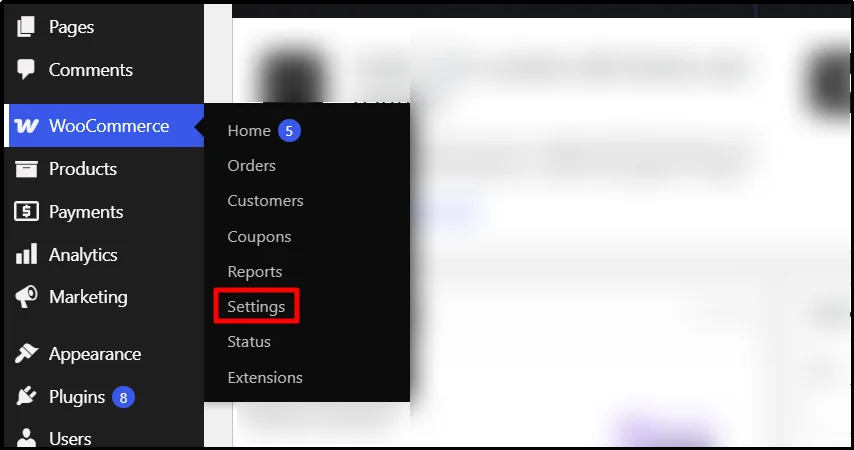
- Hover over WooCommerce and click on Settings.
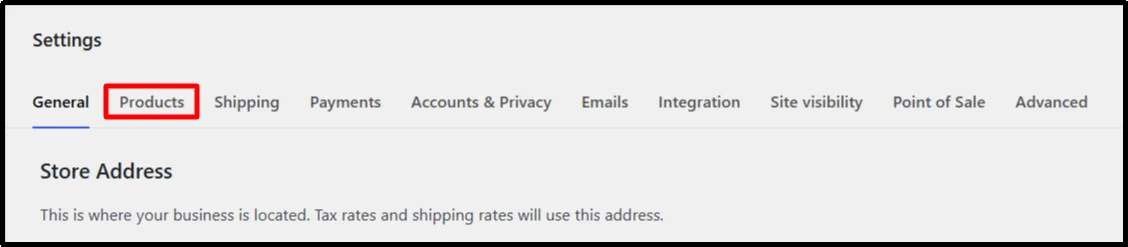
- You will land on General settings; click on the Products Tab.
- Now go to Inventory.
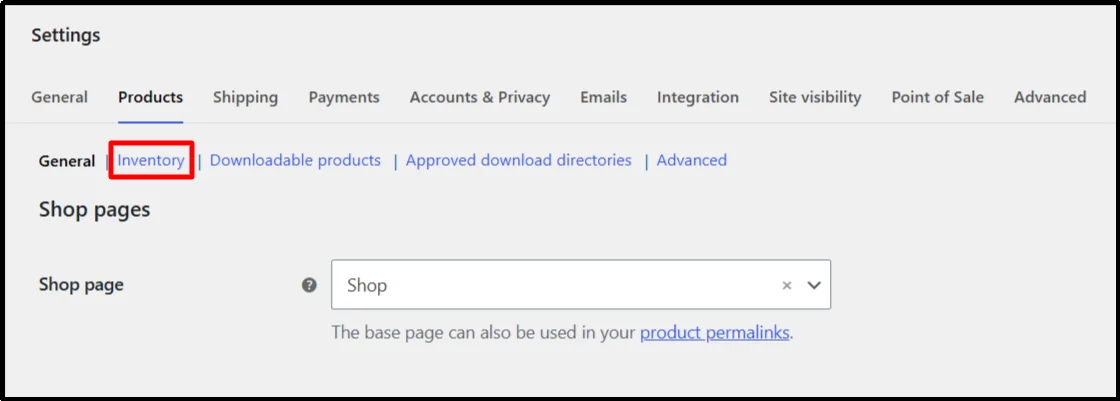
- Tick the checkbox – “Enable Stock Management”.

- Under the inventory settings, you can tweak the following settings:
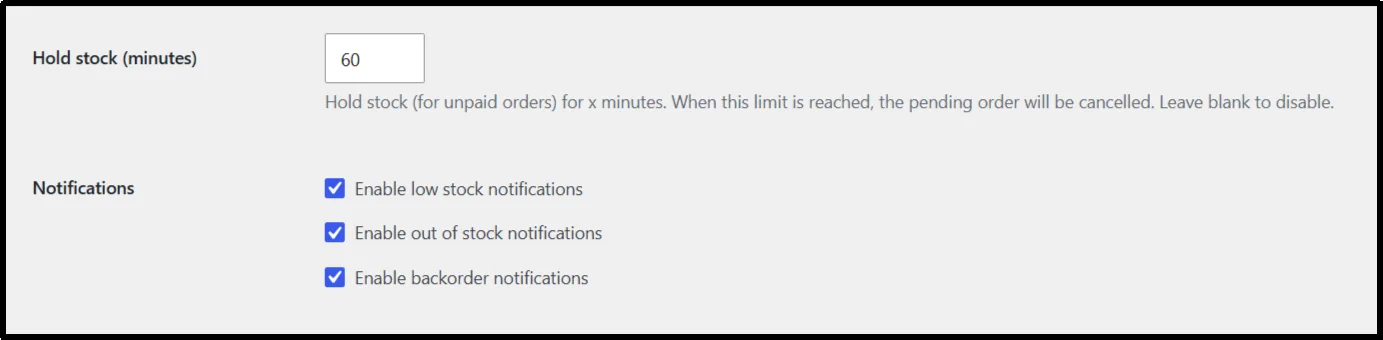
- Hold Stock (minutes) — sets how long WooCommerce holds stock for eligible orders with the Pending payment status. When the time expires, WooCommerce cancels the pending order and releases the held stock.
- Notifications – you can enable or disable three key notifications: low stock, out of stock, and backorder. This will keep you updated on your stock quantity.
7. Low Stock Threshold — the stock level that triggers a low-stock notification when stock reaches that level.
8. Out of Stock Threshold – usually 0, as the product runs out of stock.
9. Out of Stock Visibility – if a product runs out of stock, you can hide it from the catalog.
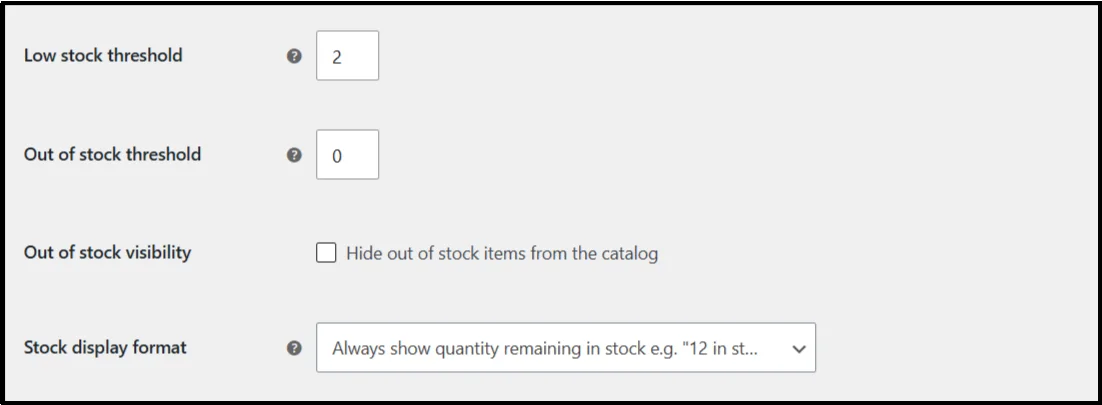
10. Stock Display Format – You can select how to show your stock amount or not show it at all.
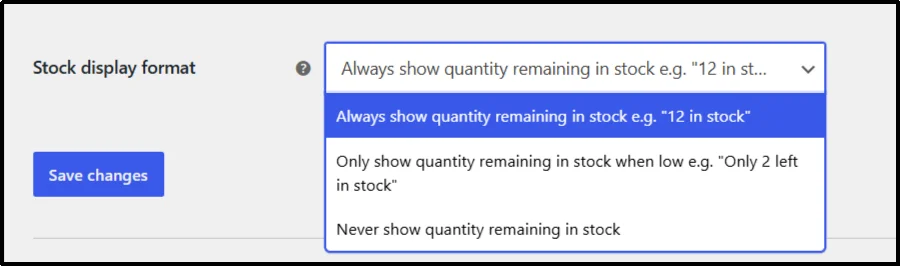
11. Click on Save Changes.
How to Manage Inventory in WooCommerce
Once you enable stock management, WooCommerce lets you manage inventory directly from your product settings. You can set stock quantities, update stock status, manage individual variations, and adjust inventory when you receive or sell products.
Step 1: Open Your WooCommerce Products
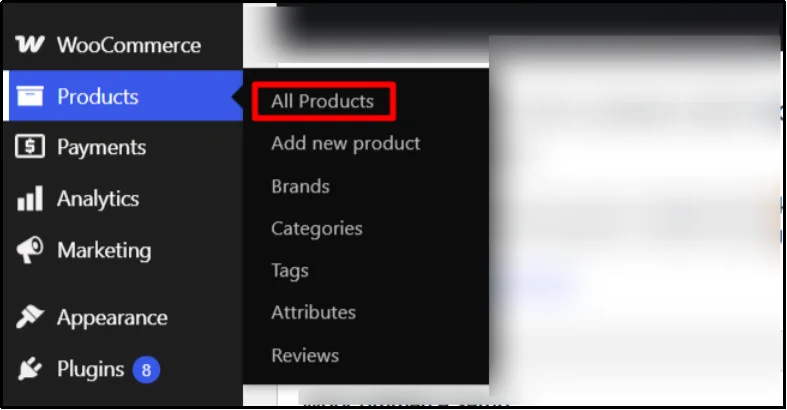
- Go to your WordPress dashboard and navigate to Products → All Products.
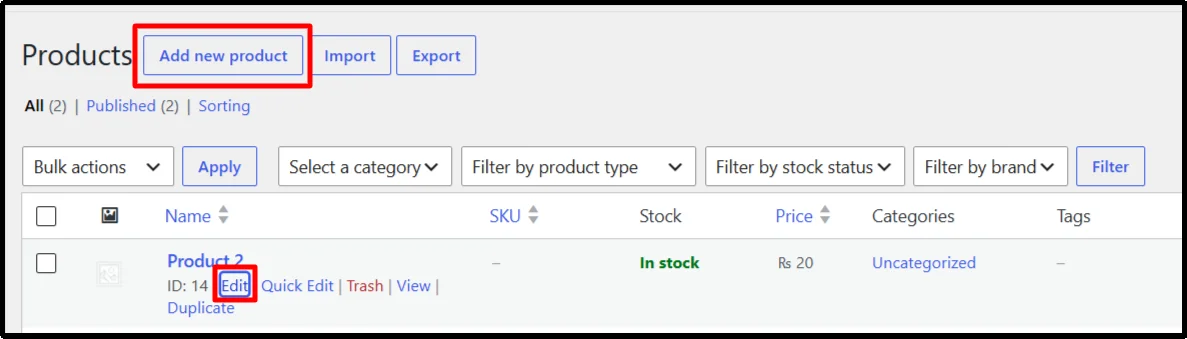
- Either create a new product or find the product whose inventory you want to manage and click Edit.
Step 2: Open the Inventory Settings
- Scroll down to the Product data section and select the Inventory tab.
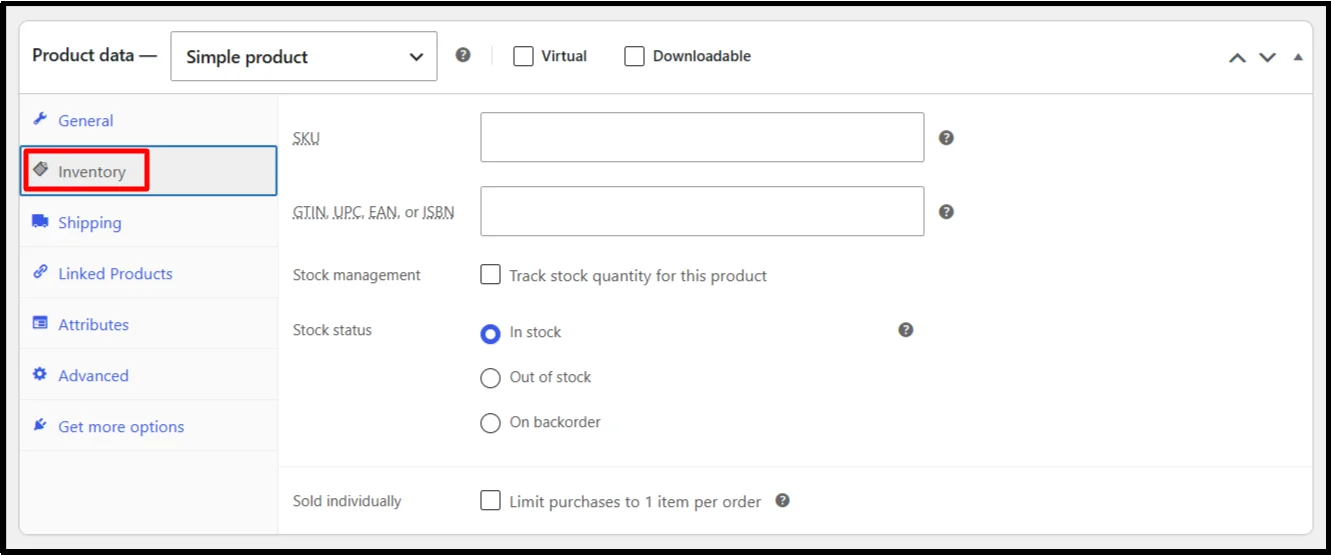
- Here, you can control the stock quantity, SKU, stock status, and other inventory options for that product.
- You can also limit purchases to 1 item per order.
Step 3: Enable Stock Management for the Product
- Check Stock Management to let WooCommerce track the product’s quantity automatically.
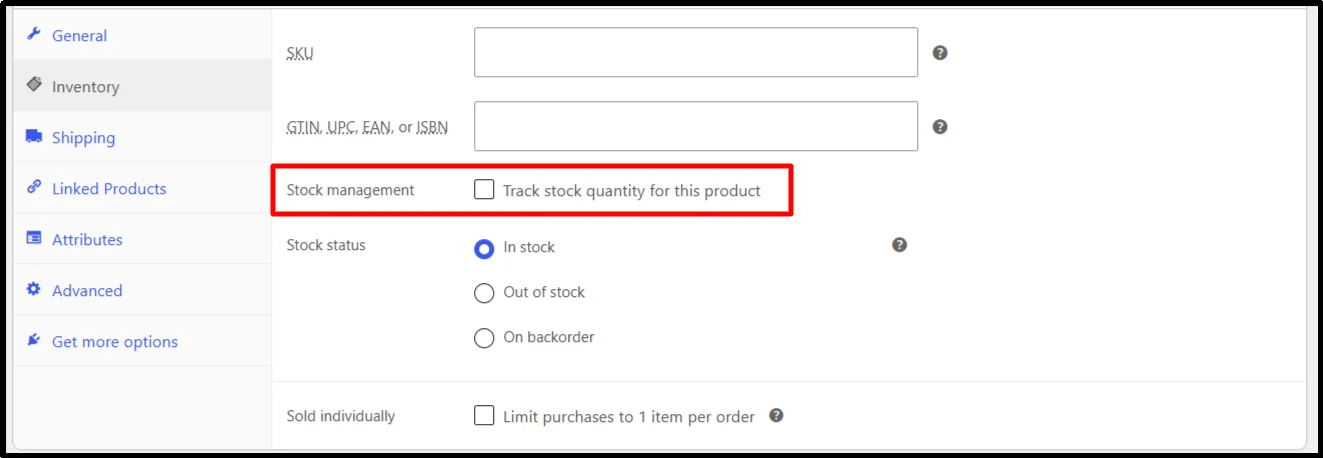
- Once enabled, WooCommerce will reduce the available stock when customers purchase the product and restore it when applicable orders are cancelled or refunded.
Step 4: Enter the Stock Quantity
- Enter the number of units currently available in the Quantity field.
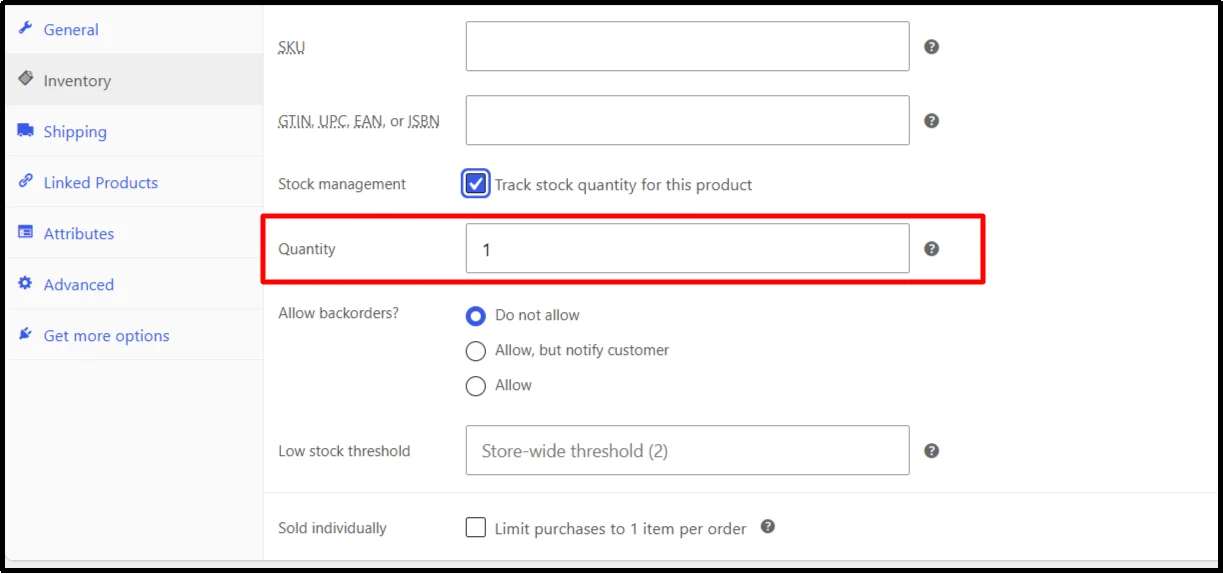
For example, if you have 25 units available, enter 25. WooCommerce will update this quantity as customers place orders.
Step 5: Set the Stock Status
⚠️ When you enable stock management for a product, WooCommerce uses the stock quantity to determine availability. You can also configure whether customers can place backorders.
Choose the appropriate stock status:
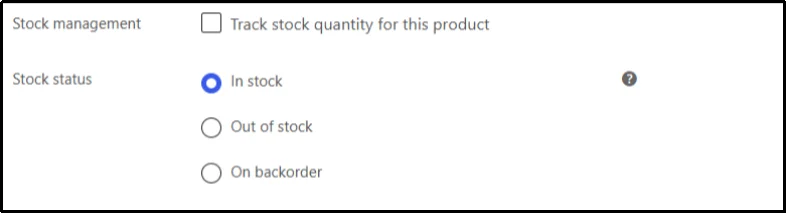
- In stock — The product is available for purchase.
- Out of stock — Customers cannot purchase the product while it remains unavailable.
- On backorder — Customers can place an order even though the current stock has run out, depending on your backorder settings.
Step 6: Manage Inventory for Product Variations
If you’re selling a variable product, follow the steps below:
- Open the Variations tab under Product data.
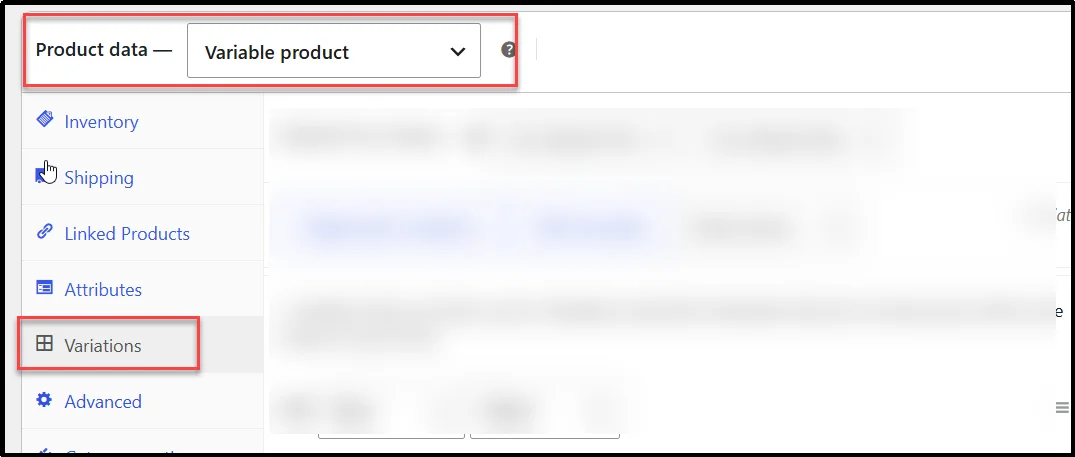
- If you don’t have any variation yet you can create it through the Attribute tab.
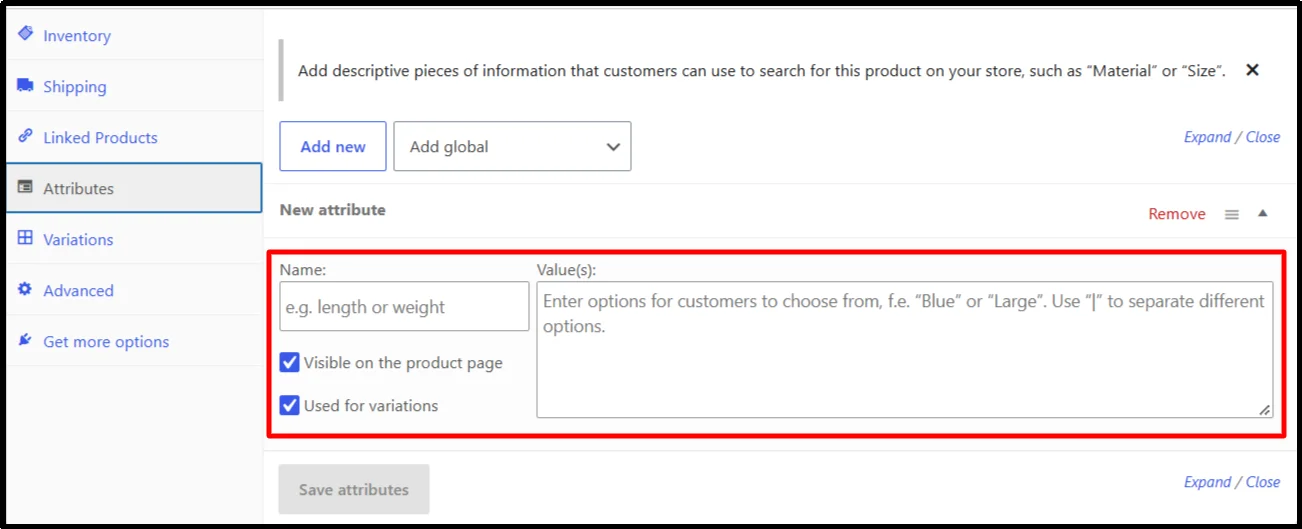
- Enable the Manage stock option and set the stock quantity, backorder settings, and low-stock threshold separately for each variation.
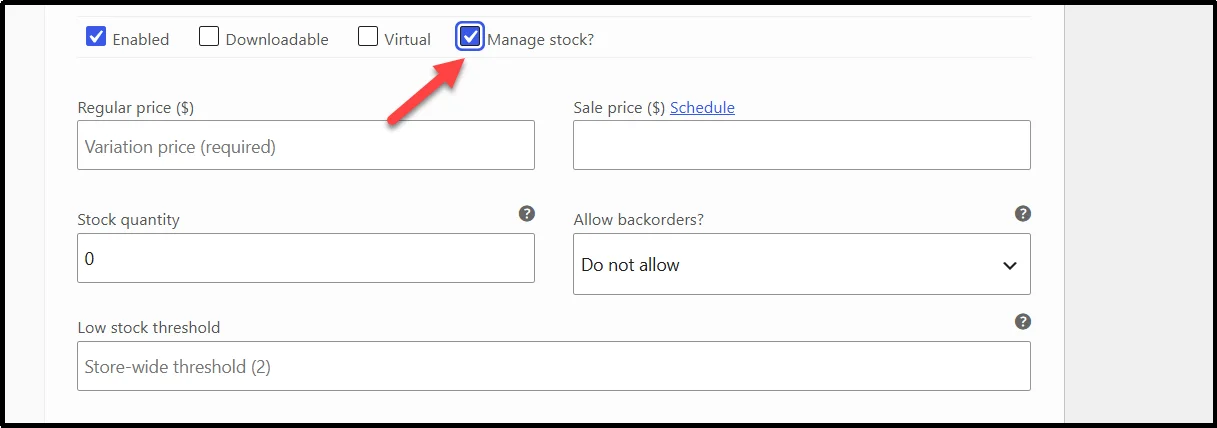
- Finally, click the ‘Save Changes’ button to apply the change.
Step 7: Update the Product
After making your inventory changes, click Update to save them.
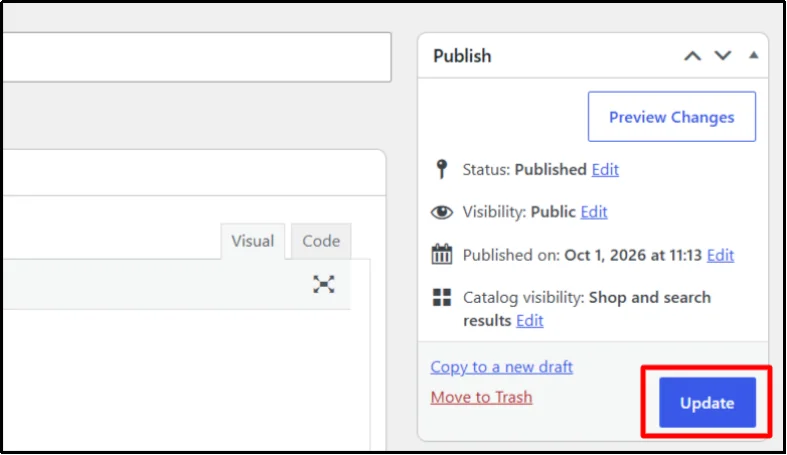
WooCommerce will then use the updated stock quantity when processing new orders and displaying product availability.
For stores with a large catalog, updating products individually can become time-consuming. Bulk inventory tools and inventory synchronization solutions can make stock management easier when you need to update products across multiple channels or locations.
How to Bulk Update WooCommerce Inventory
WooCommerce also provides bulk editing tools for updating multiple products at once. Go to Products → All Products, select the products you want to change, choose Edit from the Bulk Actions menu, and click Apply. WooCommerce lets you make certain bulk changes without opening each product individually.
However, WooCommerce’s core bulk editor has limitations, particularly with variable products and more complex inventory changes.
WooCommerce Inventory Management vs. Inventory Synchronization
WooCommerce inventory management focuses on tracking and controlling stock within your WooCommerce store. Inventory synchronization focuses on keeping stock levels consistent between WooCommerce and another system, such as Square POS, a marketplace, or an external inventory platform.
If you sell through WooCommerce alone, the built-in inventory tools may cover your basic needs. If you sell the same products through WooCommerce and Square POS, inventory synchronization can reduce duplicate stock updates and help keep inventory consistent across both channels.
How to Sync Square and WooCommerce Inventory with WC Shop Sync
If you sell products through both your WooCommerce store and Square POS, keeping inventory updated in both platforms can become difficult when you manage stock manually. WC Shop Sync helps you synchronize inventory between WooCommerce and Square so stock changes can flow between the two platforms.
If you are new to the integration, learn how to set up Square with WooCommerce before configuring inventory synchronization.
Before you begin, make sure WooCommerce is installed and configured, you have an active Square Seller Account, and WC Shop Sync is installed on your WordPress website.
Step 1: Install and Activate WC Shop Sync Pro
First, install the WC Shop Sync Pro plugin on your WooCommerce store.
- Go to the WC Shop Sync Pricing page and purchase either the Professional or the Business plan.
- You will receive an email containing the WC Shop Sync Pro plugin ZIP file and license key. Download the file and copy the license key for later use.
- Log in to your WordPress Admin Panel. Go to Plugins → Add Plugin.
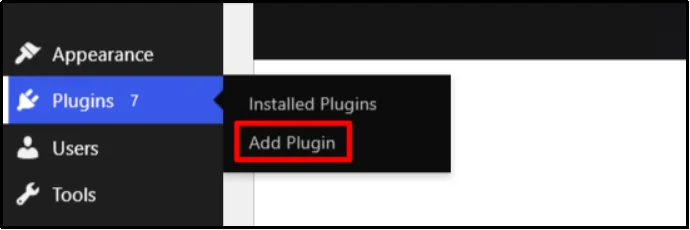
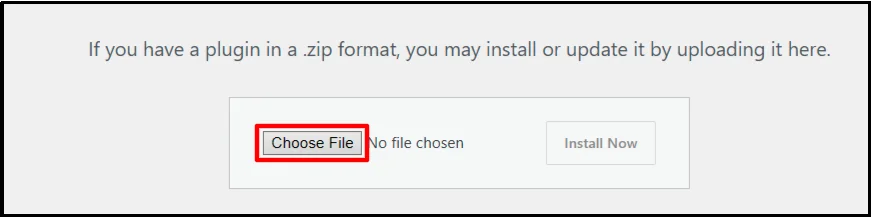
- Click on Upload Plugin.
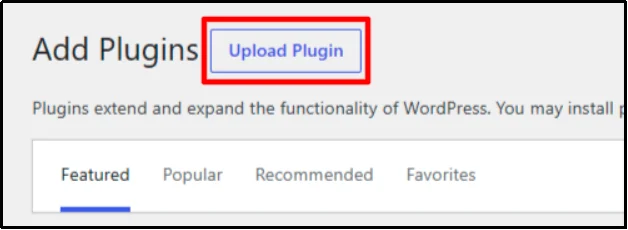
- Click Choose File, select the downloaded ZIP, and click Install Now, then wait for the installation to finish.
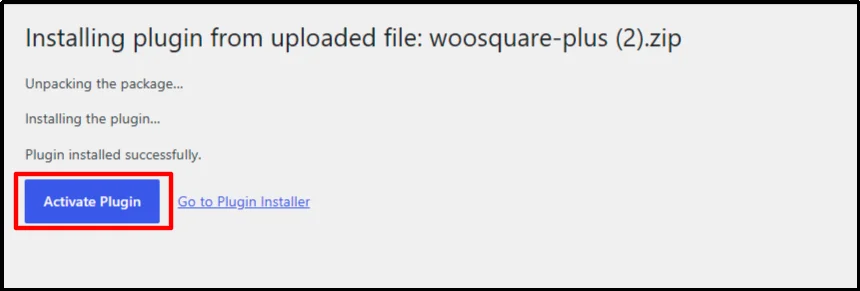
- Click Activate Plugin.
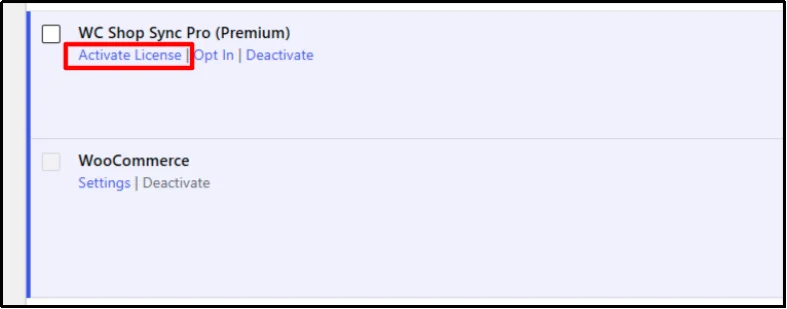
- You will be redirected to the Plugins page. Scroll down and find WC Shop Sync Pro (Premium), then click Activate License under it.
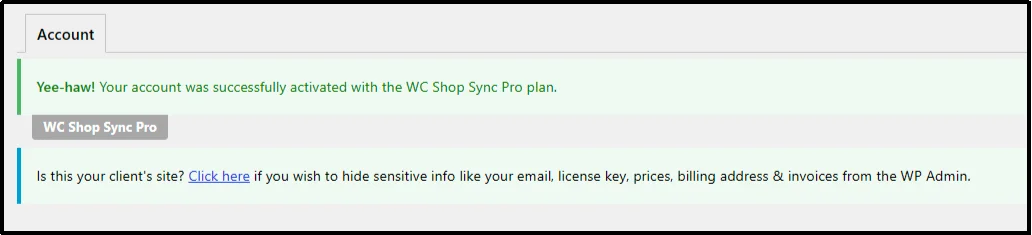
- Enter the license key and click Agree & Activate License.
After successful activation, the WC Shop Sync Settings option will appear in your WordPress dashboard.
Step 2: Connect WooCommerce With Square
After activating the plugin, connect your WooCommerce store to your Square Seller Account.
- Go to WC Shop Sync Settings from your WordPress dashboard.
- Choose the appropriate mode:
- Sandbox — Use this mode for testing with a Square Developer Test Account.
- Production — Use this mode for your live Square account.

- Click Connect with Square.
- Sign in to your Square account.
- Authorize the required permissions.
- Click That’s My Site – Redirect Me to return to WooCommerce.
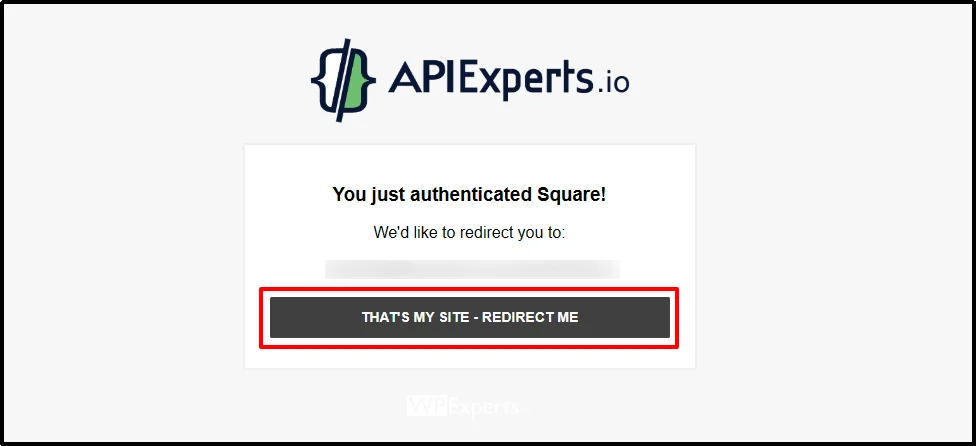
Once the connection is complete, WooCommerce and Square will be connected through WC Shop Sync.
Step 3: Enable Product and Inventory Synchronization
Now enable the synchronization module responsible for keeping your product and inventory data connected.
- In the WC Shop Sync dashboard, click on Access your Module.
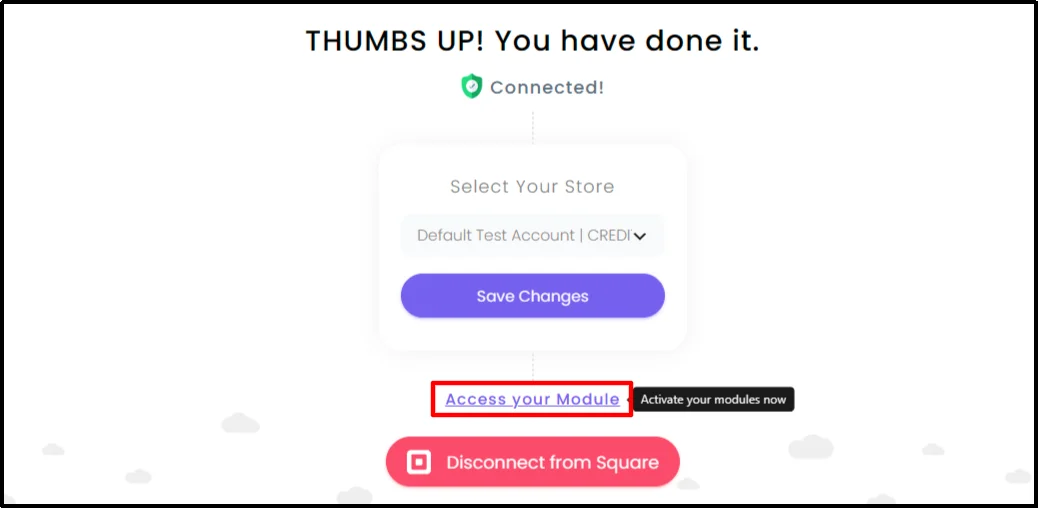
- Find the Product/Inventory Synchronization module.
- Enable the module.
- Open its settings.
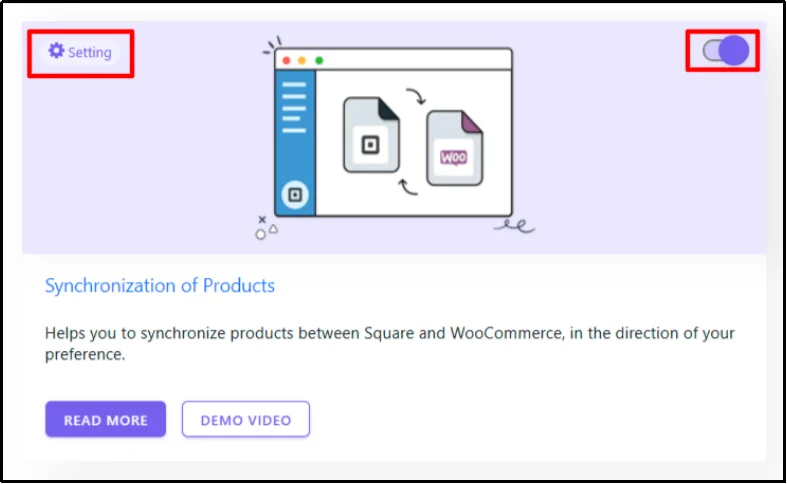
- Configure the synchronization options according to how you want WooCommerce and Square to exchange product and inventory data.
- Auto Synchronize – Turn it on so you don’t have to worry about syncing inventory manually.
- Sync on edit in WooCommerce – Once you enable this option, your products in Square will be updated whenever you make changes in WooCommerce.
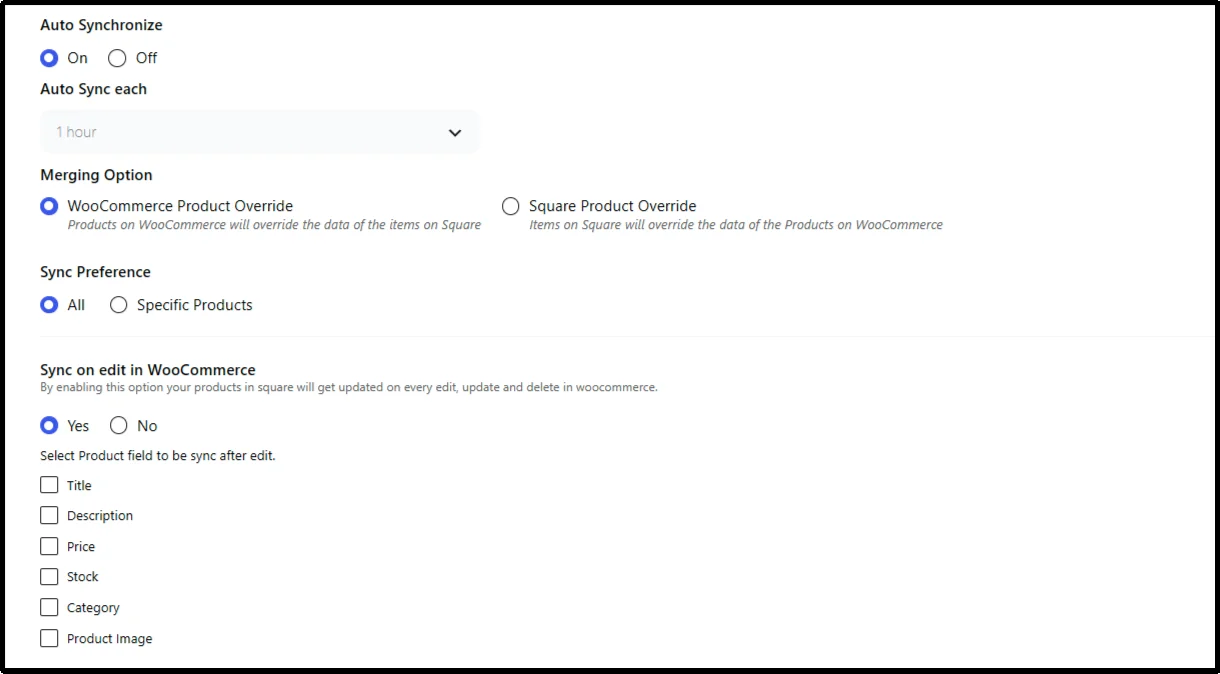
- Save your changes.
Depending on your configuration, you can choose which products should participate in synchronization and configure the automatic synchronization settings.
Step 4: Check and Monitor the Inventory Sync
After configuring the integration, make a small inventory change or complete a test transaction to confirm that the synchronization is working as expected.
Check the corresponding product in both WooCommerce and Square, and verify that the stock quantity has been updated correctly.
If your setup uses webhook-based stock synchronization, the inventory update can be triggered when a supported stock change occurs.
By following these steps, you can connect WooCommerce and Square with WC Shop Sync and reduce the need to update inventory manually in both platforms. This makes it easier to maintain consistent stock levels when you sell through your online store and Square POS.
Limitations of Native WooCommerce Inventory Management
WooCommerce gives you the core tools to manage stock inside your store, but native inventory management has a clear boundary: it primarily manages inventory within the WooCommerce environment.
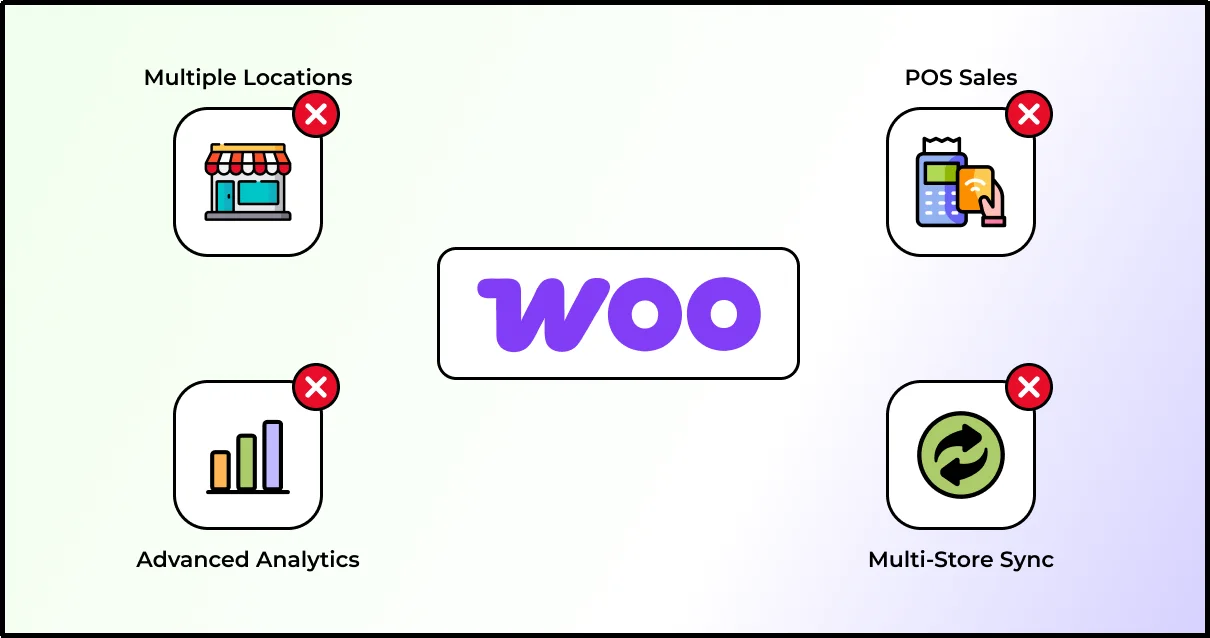
Once your operation involves multiple physical locations, POS sales, large-scale bulk updates, or demand planning, you may need additional tools or integrations.
- WooCommerce core does not provide a native multi-location inventory system. Stores that need separate stock levels across warehouses, retail locations, or fulfillment centers typically need an extension, integration, or external inventory system.
- WooCommerce doesn’t automatically account for offline or POS sales unless you connect it to an integration that updates online stock after in-store transactions. (If you’re unfamiliar with how the retail side works, understanding the Square POS system can help clarify how in-store sales affect your WooCommerce inventory.)
- Managing a large catalog can still become time-consuming, although WooCommerce provides built-in bulk editing for selected products. More complex inventory changes, especially across variable products or multiple systems, may require additional tools.
- Low-stock notifications can give alerts, but WooCommerce doesn’t natively handle advanced replenishment workflows such as supplier management, purchase orders, or automated restocking.
- WooCommerce doesn’t provide a native system for maintaining one shared inventory across multiple independent WooCommerce stores, so businesses running several storefronts need a synchronization solution.
- Native inventory management focuses on stock quantities and statuses rather than comprehensive inventory analytics such as stock movement history, inventory turnover, dead-stock analysis, or location-level reporting.
- WooCommerce doesn’t natively synchronize inventory across every sales channel, marketplace, POS system, or external storefront. Businesses selling through multiple channels typically need an inventory synchronization tool.
- WooCommerce doesn’t provide a complete supplier and purchasing workflow for managing supplier lead times, purchase orders, receiving, and replenishment alongside store inventory.
When Do You Need a WooCommerce Inventory Management Plugin?
WooCommerce provides the essentials for tracking stock, but your inventory needs can grow as your store adds products, sales channels, or physical locations. A WooCommerce inventory management plugin becomes valuable when you need to keep stock synchronized automatically instead of updating quantities manually.
You may need one if you:
- Sell through WooCommerce and Square POS and want inventory updates to flow between both platforms.
- Need automatic stock synchronization when a product sells on WooCommerce or Square.
- Manage a large catalog and want to synchronize products in bulk rather than edit them individually.
- Sell the same products online and in a physical store and need to reduce the risk of overselling.
- Want real-time or webhook-based stock updates between WooCommerce and Square.
- Need product synchronization alongside inventory, orders, customers, transactions, or Square modifiers.
- Want synchronization logs and order history to help identify and troubleshoot data discrepancies.
For example, a WooCommerce store that also uses Square POS can use WC Shop Sync to synchronize products and automate stock updates between the two platforms. WC Shop Sync supports automatic inventory synchronization between WooCommerce and Square, while additional Square-specific features vary by plan.
WooCommerce Inventory Management Best Practices
Effective WooCommerce inventory management is about accurate product data, reliable stock updates, clear reorder points, and a process that prevents discrepancies between your online store and other sales channels.
Here are practical ways to keep your inventory under control:
1. Keep Stock Quantities Accurate
Update inventory as soon as you receive, sell, return, or adjust products. Incorrect stock numbers can lead to overselling, canceled orders, and unnecessary customer support.
If you manage inventory across WooCommerce and another sales channel, consider automating these updates instead of maintaining separate stock counts manually.
2. Use SKUs Consistently
Assign a unique SKU to every product and variation. Consistent SKUs make it easier to identify products, reconcile inventory, and synchronize the same item between WooCommerce and external platforms.
This becomes especially important when your catalog contains similar products, multiple sizes, colors, or variations.
3. Track Variable Products Separately
Don’t treat every variation as one inventory item when each variation has its own stock level. For example, a Medium Black T-shirt may have 15 units available while Large Black has only 3.
WooCommerce lets you manage stock at the variation level, giving you more accurate variable product stock management.
4. Set Sensible Low-Stock Thresholds
Configure low-stock thresholds based on how quickly each product sells and how long replenishment takes. A fast-moving product may need a higher reorder point than an item that sells occasionally.
Review these thresholds regularly as sales patterns change, rather than using the same number for every product.
5. Review Inventory Regularly
Don’t rely entirely on automated stock counts. Compare your WooCommerce inventory with your physical stock during regular inventory checks. This can uncover discrepancies from returns, damaged products, manual adjustments, or sync issues.
For larger catalogs, WooCommerce’s stock reports can also help identify products that need attention.
6. Avoid Manual Updates Across Sales Channels
Managing the same inventory separately in WooCommerce and Square can create unnecessary work. A product sold through one channel may remain incorrectly available on the other if you don’t update both systems.
WC Shop Sync can help automate this process by synchronizing WooCommerce and Square inventory. Its auto stock sync via webhook can update stock when inventory changes, reducing the need to make the same adjustment manually in both systems.
7. Keep Product Data Synchronized
Inventory is only one part of managing products across multiple platforms. Product names, descriptions, SKUs, prices, variations, and other product information can also become inconsistent when you maintain separate catalogs.
If WooCommerce and Square both serve as sales channels, keeping product data synchronized alongside inventory creates a more consistent catalog and reduces repetitive administration.
8. Monitor Synchronization and Order Activity
If you use an inventory synchronization solution, periodically review synchronization history and order activity. This helps you spot failed updates or unexpected differences before they affect customers.
You can also learn how to sync orders between Square and WooCommerce to keep order data aligned across both platforms.
For stores using WC Shop Sync, synchronization and order history can provide useful visibility when troubleshooting WooCommerce-Square data changes.
9. Plan for Growth
Your inventory process should work when your store has hundreds or thousands of products, not just when the catalog is small. As order volume and sales channels increase, prioritize automation wherever manual updates create repetitive work.
For a WooCommerce-only store, the built-in inventory tools may cover the basics. But if you sell through WooCommerce and Square POS, automated WooCommerce inventory sync can make stock management considerably easier to maintain.
Ready to Integrate WooCommerce Inventory Management?
WooCommerce provides essential tools to track and manage product stock, but inventory management gets more complicated as your store grows across multiple products, locations, and sales channels.
If you also sell through Square POS, manually updating stock in both platforms creates extra work and increases the risk of inventory discrepancies. WC Shop Sync synchronizes WooCommerce and Square, letting you automate product and inventory updates between the two platforms.
Stop updating inventory across platforms manually. See how WC Shop Sync can keep your WooCommerce and Square stock aligned.
Frequently Asked Questions
Does WooCommerce have inventory management?
Yes. WooCommerce includes basic inventory management tools that let you track product quantities directly from your WordPress dashboard. You can enable stock tracking, set stock quantities, allow or prevent backorders, define low-stock thresholds, and configure out-of-stock behavior. These features work well for stores that manage inventory in WooCommerce.
What inventory management features does WooCommerce provide?
WooCommerce covers the fundamentals of inventory management, including stock quantity tracking, automatic stock reduction after purchases, backorder controls, low-stock alerts, out-of-stock settings, and stock reporting. However, its built-in tools mainly focus on managing inventory within your WooCommerce store, not coordinating stock across multiple platforms or locations.
How does WooCommerce variable product stock management work?
WooCommerce can track inventory separately for each product variation. For example, a T-shirt can have individual stock quantities for Small, Medium, and Large. When you enable stock management for the variations, WooCommerce deducts the appropriate quantity when a customer purchases that specific option. This makes WooCommerce variable product stock management more accurate than maintaining one combined stock figure.
How can I set up WooCommerce low-stock notifications?
WooCommerce lets you define a low-stock threshold that triggers an email notification when inventory reaches that level. You can configure the default threshold in the inventory settings and adjust stock-related settings for individual products where needed. Setting realistic thresholds helps you identify products that need replenishment before they go out of stock.
Can I sync WooCommerce inventory with Square POS?
Yes, you can connect WooCommerce and Square POS through WC Shop Sync. This is particularly useful when you sell both online and through asynchronize inventory between WooCommerce and Square physical POS. Square WooCommerce inventory sync can help reduce manual stock updates and lower the risk of selling an item online after it has already been sold in-store.